72% off on product page · save $21.98
Dual-Mode Gaming Mouse: Wireless Modes and DPI Guide
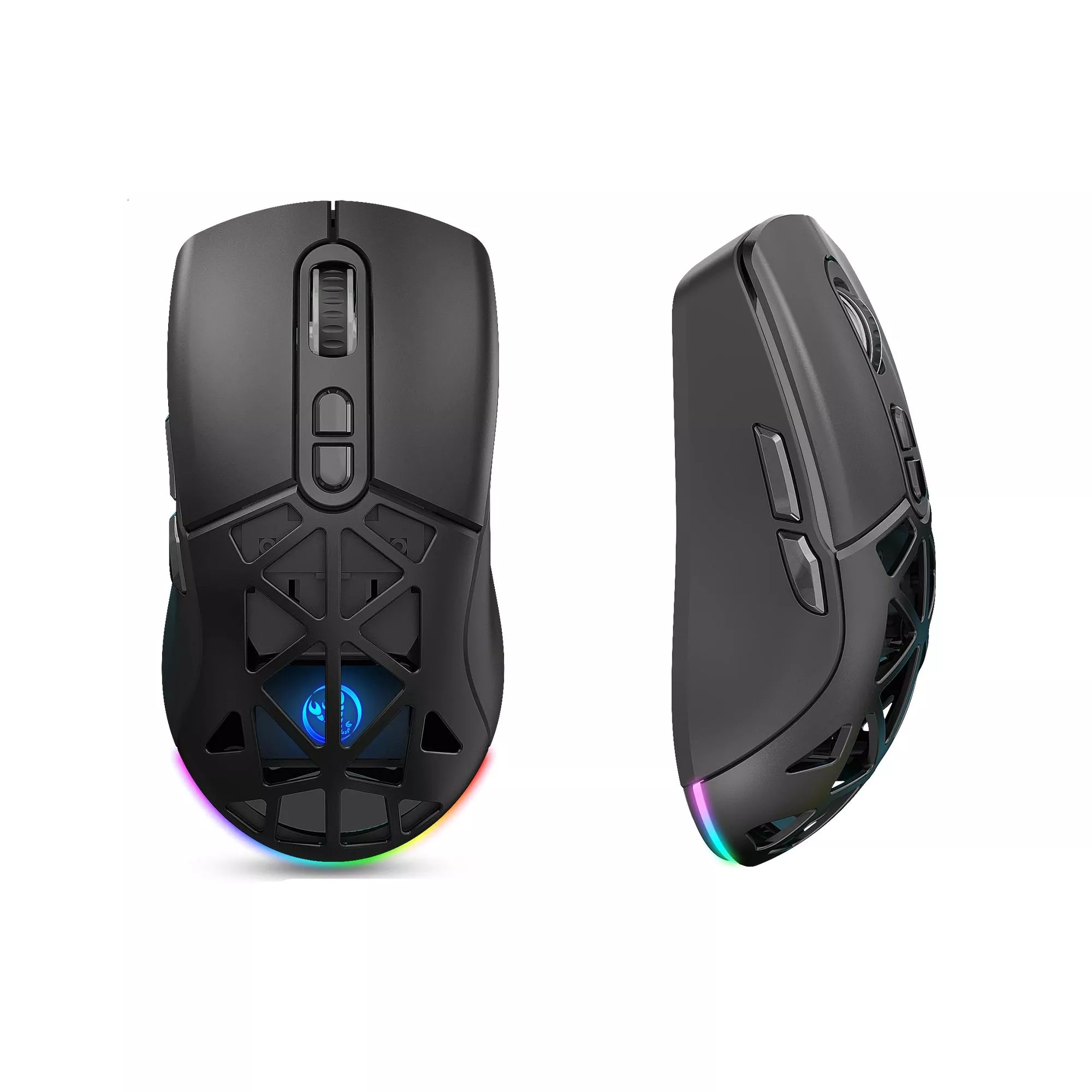
Two Wireless Modes for Different Setups
Dual mode means you can use either of two wireless connection methods: 2.4 GHz wireless or Bluetooth. You can choose the method that suits the device you’re using and the ports you have available.
A 2.4 GHz wireless connection typically uses a compatible USB receiver plugged into your computer. That makes an available USB port an important part of the setup. Bluetooth, on the other hand, pairs directly with a Bluetooth-compatible device, so you don’t need to reserve a USB port for a receiver.
Neither option is automatically the best choice for everyone. If your computer supports Bluetooth and you want to keep its USB ports open, Bluetooth is a convenient place to start. If you have an available USB port and prefer a receiver-based connection, consider 2.4 GHz.
2.4 GHz and Bluetooth at a Glance
| Consideration | 2.4 GHz wireless | Bluetooth |
|---|---|---|
| Connection | Typically uses a USB receiver | Pairs with a Bluetooth-compatible device |
| USB port | Typically needed for the receiver | Not needed for a receiver |
| Best consideration | A device with an available USB port | A compatible device where a free USB port matters |
Before choosing a mode, consider the device you’ll use most often. A laptop with few ports may benefit from Bluetooth, while a desktop with an open USB port gives you room to use a compatible receiver. Actual performance depends on your setup and surroundings, so we don’t promise a particular range or response time.
Featured in this guide
dual-mode-wireless-gaming-mouse-2-4g-bluetooth-5-1-4800dpi-adjustable
Adjust DPI to Suit the Task
DPI describes mouse sensitivity. Generally, a higher setting moves the pointer farther for the same hand movement, while a lower setting requires more movement and may feel easier to control for precise work.
Our mouse offers adjustable sensitivity up to 4800 DPI. For careful aiming, try a lower setting; if you want the pointer to travel farther with less movement, try a higher one. Your computer’s pointer settings and a game’s sensitivity controls also affect how movement feels.
Connect with 2.4 GHz Wireless
Connect a compatible USB receiver to an available port, then select the mouse’s 2.4 GHz mode. Give your computer a moment to recognize the connection and move the mouse to test it.
Use the product instructions for receiver requirements and mode controls. If the pointer doesn’t respond, confirm that the receiver is connected and the matching mode is selected.
Connect with Bluetooth
Adjustable DPI and two wireless modes make it easier to adapt your setup to different tasks. You might prefer one sensitivity for careful aiming and another for moving quickly between windows. The connection choice can be just as practical: use the option that fits your device’s Bluetooth support and available ports.
If you also coordinate gaming sessions or other group activities, our vendor coordination log is a separate option for organizing coordination work. For the mouse itself, review your device’s connection options before deciding which mode to use.
Ready to choose your setup? View our dual-mode wireless gaming mouse for its current price and product details.
Before choosing, compare the product details with your daily routine, available space, care needs, and preferred setup. The strongest option is usually the one that fits the intended use clearly and remains simple to clean, store, and check before repeat use.
It is also worth checking measurements, material notes, included parts, and compatibility details so the item matches the way it will be used after delivery.
FAQ
What’s better, 2.4 mode or Bluetooth mode?
The better choice depends on your setup. A 2.4 GHz connection typically uses a USB receiver, while Bluetooth can leave USB ports free on a compatible device.
How to connect dual mode mouse?
Select the desired mode, then connect a compatible USB receiver for 2.4 GHz or pair the mouse through your device’s Bluetooth settings. Follow the product instructions for the specific controls.
See if dual-mode-wireless-gaming-mouse-2-4g-bluetooth-5-1-4800dpi-adjustable fits your setup